
The WhatsApp chatbot feature in Serlzo’s WhatsApp Marketing tool helps you reply automatically to messages. It’s a simple way to keep conversations going, even when you are not online.
If you run a business and frequently receive repeated questions, such as “How much is this?” or “Is this available?”, this tool will save you time and help you stay responsive.
Here’s how to set it up.
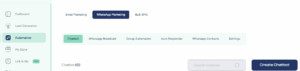
Click “Create Chatbot”
Go to the Automation tab in your Serlzo dashboard.
Next, select WhatsApp Marketing, then click on the Chatbot tab.
Click “Create Chatbot” to open the setup form.
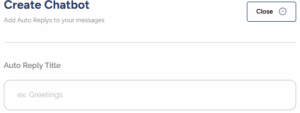
Fill in Your Chatbot Details
Auto Reply Title
Give your chatbot a name that is easy to recognize. Example: “Greetings”, “Product Questions”, or “After-Hours Reply”.
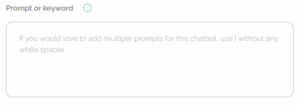
Prompt or Keyword
Type the word or message that should make the bot reply. You can add more than one by separating them with this symbol: |
Example: hi | hello | price | available
Prompt Type
This tells the bot how to match the message someone sends. When you click Prompt Type, you will see two options:
- Contains – The bot will reply if the message includes the keyword. (Example: “Hi there” will trigger a response if “hi” is in your keyword list.)
- Equal To – The bot will only reply if the message exactly matches the keyword. (Example: Just “hi” or “price”, nothing else.)
Choose Contains if you want the bot to respond to more types of messages. Use Equal To if you want very specific matches.

Contact Management
These options help you save and organize leads automatically:
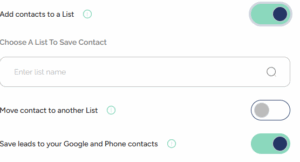
- Add Contacts to a List: Turn this ON to save people who trigger the chatbot. Once it’s ON, you will see “Choose a list to save contact” select where you want their info saved.
To save contacts from your chatbot, you need to choose an existing list. If you don’t have one yet, here’s how to create one using the forms feature in Serlzo
- Move Contacts to Another List: Turn this ON if you want contacts moved from one list to another after the bot responds.
- Save Leads to Your Google and Phone Contacts: Turn this ON to save the contact to your phone and Google account automatically.
Set Your Responses
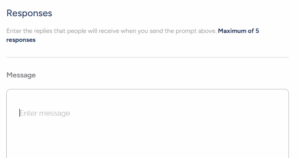
You can add up to five responses. The chatbot will rotate them randomly so it doesn’t sound repetitive.
Delay Time
Set how many seconds to wait before the bot sends the reply. This makes the response feel more natural, like a human is typing.

Add More Responses or Save
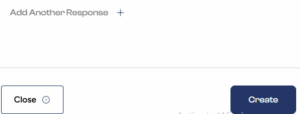
Click “Add Another Response” if you want more variations. When you are done, click “Create” to save your chatbot.
Want Your Chatbot to Be Even Smarter?
With Serlzo, you can enable AI Auto Reply using ChatGPT so that when your keyboard replies don’t match a message, the chatbot can still respond like a human.
This is great for handling unexpected questions or responding intelligently when you are not available.
How to Set It Up:
Connect Your OpenAI Assistant
– Go to the Integrations tab
– Click on Tools
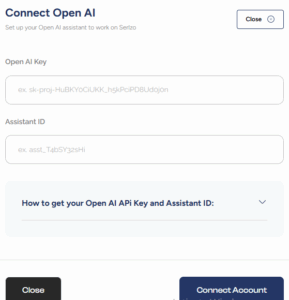
– Under OpenAI Integration, click Connect
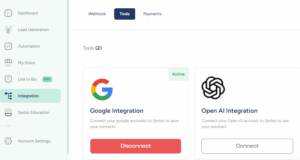
You will see two fields:
– OpenAI Key: Enter your unique key to enable the assistant.
– Assistant ID: Enter the ID of the AI assistant you want to use.
Once both are added, click Connect Account to complete the setup.
Choose How the Bot Should Respond
– Go to WhatsApp Marketing Settings
– Make sure your Webhook is connected (you will see “Reconnect” if it already is)

– Scroll to the section labeled Chatbot Response Mode
You will see three options side by side:
Chatbot Only: Replies are triggered only from the keywords and responses you created.
GPT Only: Every incoming message is handled by AI (powered by your connected Assistant Key)
Chatbot and GPT: First checks your custom replies. If there’s no match, it automatically switches to AI for a response.
Once this is enabled, your chatbot can give smarter replies, keep the conversation going, and reduce the number of missed or ignored messages.

Real-Life Example: How The Style Solution Uses the Chatbot
The style solution, an online fashion brand, gets tons of WhatsApp messages asking about prices, sizes, and availability, especially for their best-selling two-piece sets.
To save time, they set up a chatbot using Serlzo.
Their setup looked like this:
– Auto Reply Title: Product Inquiry
– Prompt or Keyword: howmuch|price|available|medium|thisclothes
-Prompt Type: Contains
– Add to List: ON (to group interested buyers)
– Save to Contacts: ON
Sample responses:
-” Thanks for your interest! Our two-piece set goes for 18,000. Available in sizes S to XL.”
-” Yes, it’s available in medium. Want us to reserve one for you?”
-” Hi there! Here’s our full catalog.
Now, whenever a customer sends any of those keywords, the chatbot responds immediately, helping the brand stay responsive, reduce missed sales, and close more orders.
Why Use the Chatbot?
With the WhatsApp Chatbot, you can:
– Reply to leads automatically.
– Answer common questions 24/7
– Organize contacts into lists.
– Save time and stay consistent.
– Add AI replies to sound more human and intelligent.
Ready to try it? Create your first chatbot inside WhatsApp Marketing and let Serlzo handle the replies.