

Use Serlzo forms to capture leads fast. Create simple, effective forms to collect names, emails, and WhatsApp numbers all in one place.
Where to Find Your Forms
Logging into your Serlzo dashboard is step one. From there, simply navigate to the Lead Generation section and click on Forms.

How to Set Up a Good Form (Step-by-Step)
Here’s a breakdown of each part:
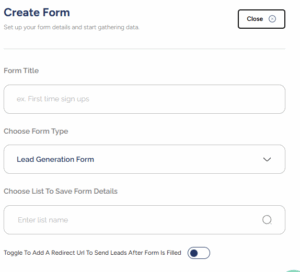
- Form Title: Give your form a name that’s easy to understand. For example, “August Giveaway Signups” or “Newsletter Subscribers” Something that helps you know what it’s for at a glance.
- Choose Form Type: This dropdown is set to “Lead Generation Form” by default. For now, this is your go-to option.
- Choose List to Save From Details: This is where you direct your incoming leads. Pick the specific list where you want all those new submissions to land. For a promo campaign, for instance, you’d send entries straight to a list like “August Promo Leads.” Organization simplified!
- Redirect URL Toggle: Want to send people
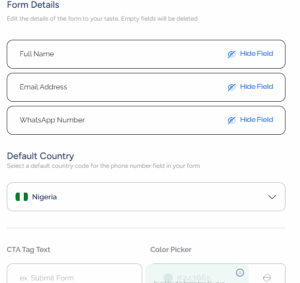
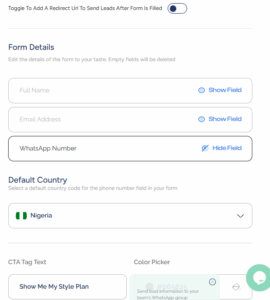
- Form Details Section: You will see familiar fields like Full Name, Email Address, and WhatsApp Number. Each one comes with a handy “Hide Field” option, giving you the freedom to ditch what you don’t need. Leave a field blank, and poof, it’s gone!
- Default Country: If you are targeting a specific audience, set the default country. This little trick saves users time and keeps your data squeaky clean and standardized.
- CTA Tag Text: This is the call-to-action on your form button. Think “Join Now,” “Get My Discount,” or “Subscribe.”
- Make it pop: Keep it action-driven and totally relevant to what your lead is about to get.
- Color Picker: Match your form’s button or text color to your brand identity or campaign vibe using the color picker.
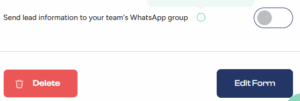
- Send Lead Info to WhatsApp Group (Toggle): This lets you automatically send the contact details (like name, email, phone number) of each new lead directly to a WhatsApp group your team uses.
- Delete or Create Form:
- Hit Delete to wipe the form away entirely.
- Click Create Form to save.
Once your form is created, you can easily embed it on your website, share it with a direct link, or even use it with Serlzo’s landing page.
What Happens After You Create a Form
Once your form is created, Serlzo gives you quick options to manage or share it easily.
Click the three dots next to your form and you will see:
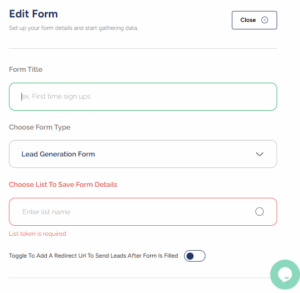
- Edit: If you need to make changes to your form, just click Edit to update any part of it. From the title and lead list to the fields and button text. You can also hide or show fields, and any left blank will be removed automatically.
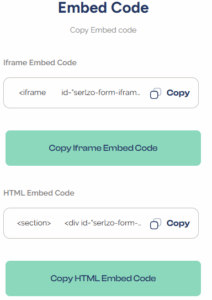
- Embed Code: This gives you two ways to embed your form on your website: iFrame Embed Code, HTML Embed Code
Just copy the one you want, and paste it into your site or landing page.
Delete: If you no longer need the form, use this option to remove it.
How This Feature Helps You Move Faster and Get Better Results For Your Business.
- Collects lead details automatically (like name, email, or WhatsApp)
- Saves you time.
- Makes follow-up easier and faster.
- Helps you connect with leads right after they fill the form.
- Increase your chances of turning interest into actual sales.
Ready to capture more leads? Build your first form on Serlzo. Tweak colors, set a CTA, and test the WhatsApp notification toggle.