
If you are trying to subscribe to Serlzo but don’t have a debit card or prefer to pay via bank transfer, this guide will show you exactly how to do it. Serlzo uses Flutterwave to process payments, and with the right settings, you can complete your payment using a simple bank transfer from your mobile banking app.
In this post, I will guide you through each step with clear instructions, allowing you to activate your Serlzo subscription in just minutes.
Log in to your Serlzo account
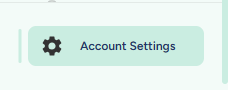
Once you are logged in, look at the left-hand side menu and scroll down.
Click on “Account Settings.”
Go to the Subscription Page
After clicking on Account Settings, you will see a tab called “Subscription.” Click it.

On the right side of your screen, you will see a button that says “Upgrade Subscription.” Click on that.

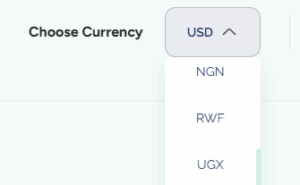
Set Your Currency to NGN or any other African currency
At the top right corner of the subscription page, click on “Choose Currency.”
Select NGN if you are in Nigeria or any other African currency that applies to your country.
Once that’s done, go ahead and pick your preferred billing plan.
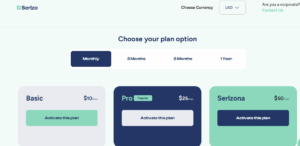
Choose a Plan
After selecting currency and billing duration (Monthly, 3 Months, 6 Months, or 1 Year), you will immediately see the available plans displayed right below:
- Basic
- Pro
- Serlzona
Each plan has a button that says “Activate this plan.”
Click the one you want to continue.
Confirm Plan and Payment Options
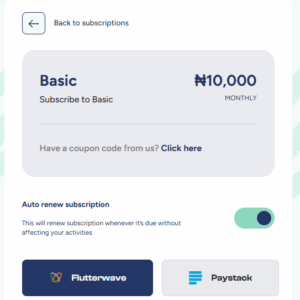
Once you click “Activate this plan,” a new page will open. You will see:
- The name of your plan (e.g., “Basic”)
- The amount
- A toggle button that says “Auto-renew subscription” (you can leave it on or off)
Below that, you will see two payment options:
- Flutterwave
- Paystack
Pay via Flutterwave.
Choose “Bank Transfer” on Flutterwave
Once you click Flutterwave, a payment window will open. On the right side, you will see a list of payment methods:
- Card
- USSD
- Bank
- Bank Transfer
- eNaira
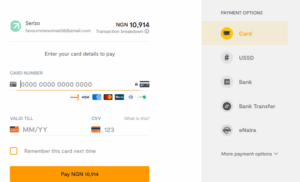
Click on “Bank Transfer.”
A new page will appear showing:
- The amount to pay
- Account number
- Bank name
- Beneficiary
You will also see a button that says: “I have made this bank transfer.”
Make the Transfer
Open your mobile banking app or use USSD and transfer the exact amount to the account number provided.
After payment, come back to the Flutterwave page and click the button that says “I have made this bank transfer.”

Wait a few seconds, Flutterwave should automatically confirm your payment. You will then be redirected back to Serlzo, and your subscription will become active.
Pay via Paystack
Note: For Paystack, ensure Auto-renew subscription is turned off before starting payment.
Click Paystack
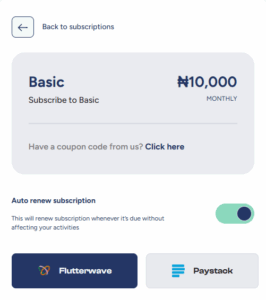
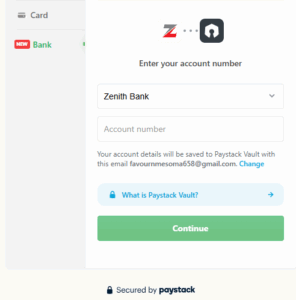
In the payment window, select Bank from menu on the left.
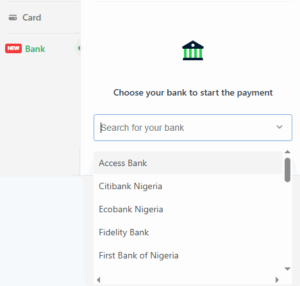
In the Choose your bank section, search for and select your bank. Enter your account number and click continue.
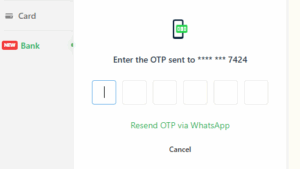
Enter the phone number linked to your bank account/BVN. You will receive an OTP on that phone number, enter it and click continue.
Paystack will display:
- Bank name
- Account number
- Amount to transfer
Make the transfer from your mobile banking app or USSD. Return to the Paystack page and click “I have sent the money.” Once confirmed, your subscription will be activated.
Once your subscription is active, you can start setting up your marketing tools inside Serlzo. A good place to begin is the lists feature under Lead Generation, where you mange your contacts. Learn how to use the Lists feature in Serlzo