
Customers expect fast answers. Studies show that real-time chat can lift conversion rates and build trust far more effectively than email or phone support. With Serlzo Pulse, businesses can connect with website visitors the moment questions arise, all while keeping conversations inside the Serlzo ecosystem.
Getting Started with Serlzo Pulse
Accessing the Live Chat Builder
- From your Serlzo dashboard, click Live Chat.
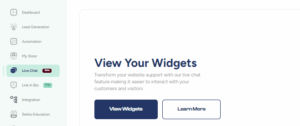
- Select View Widgets.
- Click Create Live Chat to open the setup wizard.

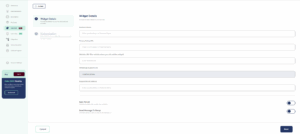
Step 1: Add Your Widget Details
This section defines the essentials of your chatbot.
- Business Name – Enter your brand name or personal name.
- Privacy Policy URL – Paste the link to your privacy policy so visitors can review how you handle data.
- Website URL – The domain where you’ll embed the widget.
- WhatsApp Support Line – Provide the WhatsApp number that customers can message.
- Support Email Address – A fallback email for support inquiries.
- Save to List – Toggle on to automatically store new contacts in an existing or new Serlzo list.
- Send Message to Group – Optional toggle to forward incoming messages to a chosen team group.
Use the Cancel button to exit or Next to continue.
Step 2: Design and Customization
Here, you decide how the chat looks and feels.
- Chat Avatar: choose avatar
- Widget Type: Choose between a simple chat icon or a “Chat With Us” button.
- Theme & Accent Colors: Match the widget to your brand’s color palette.
- Widget Position: Pick the corner of the screen where the widget will appear.
- Prefilled Message: Create a default WhatsApp message that’s sent once the visitor submits the form.
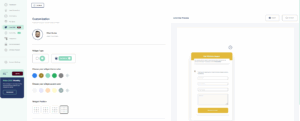
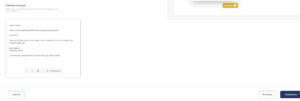
In the center of this page, you’ll see Link Chat Review, which shows a live preview of your widget.
On the far right, quick tabs labeled Open and Close let you toggle the chat’s availability.
Step 3: Create and Install
When you’re satisfied, click Create Live Chat.
A confirmation pop-up appears with:
- Success message – “Your live chat is ready.”
- Code snippet – Copy this and add it to the header of your website to activate the widget.
- Watch Video Guide – A built-in tutorial for visual learners.

Practical Tips for Using Serlzo Pulse
Respond Quickly
Visitors expect a reply within minutes. Set notifications so your team sees new chats instantly.
Use Greeting Messages
A friendly automated greeting encourages people to start the conversation.
Segment Your Leads
Because Pulse saves contacts to a Serlzo list, you can tag or segment them for targeted email, SMS, or WhatsApp campaigns later.
Track Engagement
Monitor how many chats convert into leads or sales to measure ROI.
Key Benefits for Your Business
- Real-Time Support: Build trust by solving problems as they happen.
- Higher Conversions: Catch visitors while they’re most interested.
- Centralized Communication: Manage WhatsApp, email, and live chat leads in one platform.
- Custom Branding: Colors, avatar, and position all reflect your brand identity.
Final Thoughts
Serlzo Pulse combines ease of setup with the power of instant customer interaction. In just a few clicks, you can launch a fully branded live chat widget, capture leads, and keep every conversation inside Serlzo’s marketing hub.
If you’re ready to boost engagement and never miss a visitor question, log in to your Serlzo account and set up Serlzo Pulse today.
For more ways to collect and organize contacts, see our guide on How to Boost Lead Generation and Engagement with Serlzo’s Form Tool.